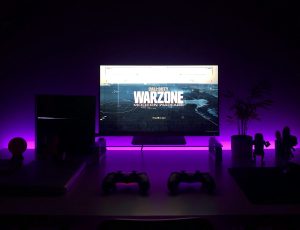
TL;DR: Misaligned jumps often come from browser zoom or OS scaling above 100%—use true fullscreen on Crazy Cattle 3D and reset display scale while learning.
Browser zoom vs game fullscreen
Ctrl+mouse wheel zoom shrinks the canvas—reset with Ctrl+0. F11 fullscreen differs from in-game fullscreen buttons; try both.
Windows display scaling
125% or 150% scaling blurs WebGL and shifts click targets. Set 100% on learning sessions or use a monitor without fractional scale.
Ultrawide and letterboxing
Black bars are normal; gameplay area stays centered. Do not stretch via GPU settings—it distorts jump distances.
Mobile notch and safe areas
HUD may sit under notches in landscape—rotate or enable safe-area padding if offered.
Multi-monitor focus
Moving mouse to second monitor unfocuses keyboard input—click back into game frame.
HDR and color filters
HDR displays occasionally wash out hazards—disable HDR for one test session.
Recording and overlay tools
Discord overlay or capture software injects borders—disable overlays if mouse feels offset.
Resolution scaling math
1080p native simplest; 1440p scales cleanly on many panels; 4K needs UI scale bump—test all three if family shares one PC.
Aspect ratio 21:9 ultrawide may crop vertical view—check if game letterboxes or stretches.
Portrait monitor unsupported—rotate display to landscape for playable field of view.
Projector and TV latency
Living room TVs often enable game mode hidden in picture settings—reduces input lag for browser HDMI laptop setups.
Projectors add frame delay—avoid competitive stars on cheap classroom projectors.
Chromecast tab casting adds lag—play locally on laptop instead of casting for precision.
Browser chrome height
Bookmark bars and extension toolbars shrink canvas—hide toolbars during serious attempts via F11 or full-screen API button in game.
Vertical tabs in Edge consume horizontal space—switch horizontal tabs during platform precision weeks.
Color profile management
OS night shift warms colors—disable when distinguishing red hazard from orange sunset backgrounds.
Monitor factory reset fixes accidental gamer mode oversaturation hiding spike contrast.
Refresh rate mismatch
144 Hz monitor with game locked 60 FPS still fine—do not force incompatible FPS unlockers against ToS.
VSync on reduces tearing on some GPUs at cost of input lag—toggle in browser GPU flags only when experimenting.
Accessibility display presets
Windows magnifier follows cursor—use only on menu text not during jumps—fullscreen zoom disorients mid-air.
High contrast OS themes affect browser chrome not always canvas—use in-game contrast slider first.
Color filters for protanopia help red spike recognition—combine with in-game colorblind mode double safety.
Reduce animations OS-wide helps vestibular issues—pair with in-game shake reduction.
Document personal preset screenshot—restore after friend borrows PC and changes scale.
Presentation mode for coaches
Teaching younger sibling on projector: increase UI scale so they read timer from couch distance.
Disable notifications on presenting laptop—Windows toast popups pause focus mid-lesson.
Fractional scaling experiments
125% Windows scaling: test jumps at 100% same day same level—note difference in notebook for future reference when switching docked laptop to monitor.
Browser zoom 90% versus 100% changes perceived pit width—pick one zoom, never change mid-campaign.
4K monitor 150% scaling sweet spot for readability without blur varies by panel—tweak once, then lock.
Streaming overlay safe zones
OBS webcam overlay corners may hide HUD coins—move overlay or shrink during Crazy Cattle 3D streams.
Capture canvas region not full desktop—privacy plus cleaner aspect ratio for viewers.
Stream delay for tournaments prevents stream sniping in competitive custom lobbies—organizers enable delay rules.
Bitrate lowering reduces encoding lag on weak CPUs—trade visual quality for input responsiveness when streaming practice.
Windows snap window layouts splitting screen between guide and game useful learning—keep guide static PDF on second monitor instead of scrolling wiki mid-jump on single monitor.
Tablet split-screen between video call coach and game possible on iPad large size—coach watches technique live.
Display scaling issues on Steam Deck or handheld Windows PCs common—use native resolution where possible accepting smaller HUD over wrong jump distances from forced upscale stretching canvas disproportionately wide.
Projector classroom demo of Crazy Cattle 3D for game design lesson—discuss level design coin placement while students watch teacher navigate Moorik explaining developer choices interactively engaging class.
Recording lesson avoids live demo failure embarrassment—backup clip ready if live WebGL hiccups on school network filtered.
Keep a recorded demo clip ready for classroom spotty Wi-Fi days when live WebGL stumbles.
Dual-monitor mixed DPI scales move cursor speed between screens—keep game on monitor with scale matching canvas calibration notes.
HDR off during competitive attempts on HDR400 monitors reduces bloom hiding spike tips subtly.
Mixed-DPI dual monitors skew cursor feel—game on the display whose scale you calibrated jumps against.
Disable HDR when spike contrast matters more than highlight punch during star attempts.
Calibrate jumps on the same monitor scale every session; switching DPI mid-campaign rewires depth perception unfairly.
Lock display scale before star grinds so pit edges stay trustworthy every attempt.
After one real attempt: fullscreen and Display Scaling Issues
Fullscreen and display scaling issues fake skill problems—fix zoom and OS scale, then jumps line up on Crazy Cattle 3D without changing your timing.